
What Is Microsoft Scout? A Simple Guide for Enterprise IT Leaders
Artificial intelligence is advancing quickly across Microsoft’s ecosystem. Many organizations are still learning how to use Microsoft Copilot across Word, Excel, PowerPoint, Outlook, Teams, and Microsoft 365. Now Microsoft Scout adds a new layer: an AI agent designed to help users complete multi-step work across files, browser interactions, local tools, and Microsoft 365 data.
For enterprise IT leaders, this is important. Scout shows where AI-powered work is heading. The next stage of AI is not only about asking better prompts. It is about giving AI agents controlled permission to help complete real tasks.
That also creates a new responsibility. If an AI agent can access files, search Microsoft 365 data, create documents, interact with tools, and work in the background, then identity, permissions, governance, and security become even more important.
This guide explains Microsoft Scout in simple language, how it differs from Copilot, what it can do, and what organizations should review before adopting AI agents at scale.
Table of Contents
- What Is Microsoft Scout?
- Key Takeaways
- How Microsoft Scout Is Different from Microsoft Copilot
- What Can Microsoft Scout Do?
- Microsoft Scout and Copilot Readiness
- Is Your Organization Ready for Microsoft Scout?
- Final Thoughts
- FAQs
Key Takeaways
- Microsoft Scout is a desktop AI agent that can help users take action across files, browser activity, local tools, and Microsoft 365.
- It is different from Copilot Chat because Scout is built for multi-step tasks, background work, and action-based support.
- Scout is currently a preview-stage experience, so enterprises should treat it as an early AI capability, not a fully mature business standard.
- The biggest value of Scout is reducing coordination work across meetings, emails, files, calendars, and tasks.
- Before using Scout or similar AI agents, organizations should review Entra ID, Microsoft 365 permissions, Intune, Purview, Conditional Access, sharing controls, and AI governance policies.
What Is Microsoft Scout?
Microsoft Scout is a desktop AI application and Microsoft’s first Autopilot agent. It is designed to help users complete complex, multi-step tasks across different parts of their work environment.
While Microsoft Copilot mainly assists inside Microsoft 365 apps such as Word, Excel, PowerPoint, Outlook, and Teams, Scout is designed to work more broadly. It can interact with local files, Microsoft 365 data, browser-based tools, and other approved work resources.
For example, a user could ask Scout to gather information from documents, organize the findings, create a summary, update a file, or help prepare a report. Instead of only giving suggestions, Scout is designed to help complete the task from start to finish, with the right permissions and controls in place.
For enterprise IT leaders, Scout represents a shift from simple AI assistance to more active AI-driven work execution. This makes governance, security, access management, and employee readiness especially important.
How Microsoft Scout Is Different from Microsoft Copilot
Microsoft Copilot and Microsoft Scout are related, but they are not the same thing.
Copilot is already familiar to many organizations. Users can use Copilot inside Microsoft 365 apps to summarize documents, draft emails, analyze spreadsheets, generate presentations, and answer questions based on approved work data.
Scout has a different role. It is closer to an action-based agent.
Copilot helps inside the flow of apps
Copilot is helpful when a user is working inside Outlook, Teams, Word, Excel, PowerPoint, or Copilot Chat. It helps answer questions, summarize information, create content, and improve productivity.
For example:
“Summarize this Teams meeting.”
“Draft an email response.”
“Create a PowerPoint outline from this document.”
“Analyze this Excel file.”
These are valuable use cases, but most of them are still centered on a specific user request inside a specific app or chat experience.
Scout is built for multi-step work
Microsoft Scout is designed to handle broader tasks. It can work across files, browser activity, Microsoft 365 data, and local workspace content.
For example:
“Review my project files, find the latest status, prepare a summary, and create a follow-up email.”
This is a different type of work. It involves search, review, reasoning, content creation, and action. Scout is built for that kind of workflow.
Simple comparison
| Area | Microsoft Copilot | Microsoft Scout |
|---|---|---|
| Main Role | AI assistant for productivity | AI agent for multi-step work |
| Common Use | Draft, summarize, answer, and analyze | Search, create, coordinate, and act |
| Works Across Apps | Yes, within Microsoft 365 experiences | Yes, across desktop, browser, files, and Microsoft 365 |
| Background Tasks | Limited | Designed for background and scheduled work |
| Local File Access | More limited | Can work with a configured workspace |
| Best Fit | Content and knowledge support | Task execution and coordination |
What Can Microsoft Scout Do?
Microsoft Scout can support many types of work. The exact capabilities may change as Microsoft continues developing the product, but the direction is clear. Scout is built to help users move from idea to action.
Here are some common ways Scout can help.
1. Prepare for meetings
Scout can help users get ready for meetings by reviewing related information across calendar events, emails, chats, and files.
This can be useful for managers, project leads, consultants, sales teams, and executives who attend many meetings every week.
Instead of manually searching for the latest update, a user may ask Scout to prepare a short brief that includes:
- Meeting purpose
- Recent emails
- Open decisions
- Related documents
- Action items
- Risks or blockers
- Suggested talking points
This saves time and helps users enter meetings with better context.
2. Coordinate calendars and follow-ups
A major part of modern work is coordination. Teams spend time finding meeting slots, checking availability, following up on pending items, and making sure the right people are involved.
Scout can help with this type of work by reviewing calendars, identifying suitable times, and preparing follow-up actions.
For example:
“Find time next week for a 30-minute project review with the security team.”
Or:
“Check what follow-ups are pending from last week’s meetings and prepare a summary.”
For enterprise teams, this can reduce manual work that often slows projects down.
3. Work with files
Scout can read, write, search, and edit files in a configured workspace. This means users can ask it to create summaries, organize files, generate documents, or update existing content.
For example:
“Create a summary of the project plan and save it as a Word document.”
“Review these notes and create an executive summary.”
“Create a spreadsheet from the data in this folder.”
This can help business users, technical teams, analysts, and project managers move faster when handling documents.
4. Create Microsoft Office files
Scout includes support for creating and editing Word documents, Excel spreadsheets, PowerPoint presentations, and diagrams.
This is useful because many enterprise workflows still end in a document, spreadsheet, or presentation.
A user may ask:
“Create a PowerPoint deck from these project notes.”
“Turn this CSV into a formatted Excel report.”
“Create a Word document summarizing these requirements.”
For teams that create frequent reports, status updates, and internal documentation, this can reduce repetitive work.
5. Help with browser-based tasks
Scout can also support browser interactions. This may include opening pages, filling forms, navigating websites, and collecting information from approved sources.
This can be useful for tasks that involve portals, dashboards, admin pages, and web-based systems.
However, this also creates a clear need for governance. Not every browser action should be automatic. Sensitive actions should require user approval.
6. Support technical work
Scout can also help with technical activities such as running commands, searching codebases, applying changes, running tests, and helping with development workflows.
This may be useful for IT teams, developers, platform engineers, and operations teams.
For example:
“Review this code folder and find configuration issues.”
“Run the test command and summarize the errors.”
“Create a markdown file with deployment steps.”
This makes Scout relevant not only for business productivity, but also for technical work.
7. Run background or scheduled tasks
One of the most important parts of Microsoft Scout is its ability to work in the background. This means it may help with tasks that happen on a schedule or based on a condition.
For example:
“Every morning, check my project updates and prepare a short summary.”
Or:
“When a high-priority client email arrives, help prepare a response draft.”
This is where Scout starts to feel different from a normal chatbot. It is built for ongoing assistance, not only one-time responses.
Microsoft Scout and Copilot Readiness
Microsoft Scout and Microsoft Copilot are different, but they depend on similar foundations.
A company that is not ready for Copilot is likely not ready for Scout.
Both require clean identity, strong access control, secure Microsoft 365 permissions, governed data, and clear user policies.
The difference is that Scout may make readiness even more important because it can take action across more areas.
With Copilot, the risk is often around information exposure and content generation. With Scout, the risk can also include action. That may include creating files, editing content, using browser automation, managing information, or supporting technical tasks.
This is why Copilot readiness should be seen as a starting point for broader AI readiness.
Organizations should not only ask:
“Can we turn on Copilot?”
They should also ask:
“Is our Microsoft 365 environment ready for AI agents that can act?”
That is the better question.
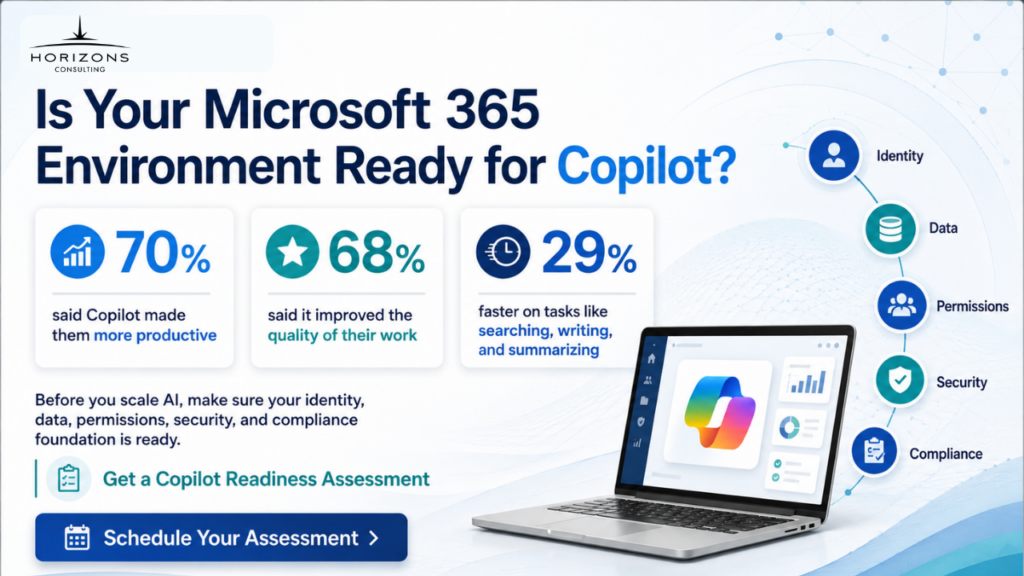
Is Your Organization Ready for Microsoft Scout?
Before adopting Microsoft Scout or similar AI agents, enterprises should ask a few practical questions.
Readiness checklist
- Are Entra ID roles and permissions reviewed?
- Are old users, groups, and guests cleaned up?
- Are privileged accounts protected?
- Are Conditional Access and MFA enforced?
- Are SharePoint and OneDrive permissions under control?
- Are Teams and external sharing policies reviewed?
- Are sensitivity labels and DLP policies active?
- Are endpoints managed through Intune?
- Are devices compliant and protected?
- Are AI usage policies documented?
- Are users trained on safe AI behavior?
- Are logs and monitoring in place?
- Are sensitive actions configured for approval?
- Is there a pilot group before broad rollout?
If the answer is “no” to several of these questions, the organization may not be ready for advanced AI agents yet.
That does not mean Scout should be ignored. It means the foundation should be improved first.
Final Thoughts
Microsoft Scout is an important step in Microsoft’s AI direction. It moves beyond simple chat and content generation. It is designed to help users complete work across files, apps, browser activity, and Microsoft 365.
For business users, this can save time and reduce manual work. For IT leaders, it raises important questions about identity, permissions, data governance, device management, and AI security.
Scout shows where workplace AI is going. The future is not only about asking AI for answers. It is about giving AI agents controlled permission to help complete work.
Organizations that want to use tools like Microsoft Scout should start with readiness. A clean, secure, and well-governed Microsoft 365 environment will make AI adoption safer and more useful.
Frequently Asked Questions (FAQs)
What is Microsoft Scout?
Microsoft Scout is an AI desktop application from Microsoft that can help users take action across files, browser activity, local tools, and Microsoft 365 data. It is designed to work more like a personal AI agent than a simple chatbot.
Is Microsoft Scout the same as Microsoft Copilot?
No. Microsoft Copilot helps users write, summarize, analyze, and answer questions inside Microsoft 365 experiences. Microsoft Scout is designed for broader multi-step work, including file actions, browser tasks, background work, and Microsoft 365 coordination.
Is Microsoft Scout available to all Microsoft 365 users?
No. Microsoft Scout is currently a preview-stage experience and requires specific access conditions. Organizations need admin enablement, policy configuration, and eligible licensing before users can sign in.
What can Microsoft Scout do?
Microsoft Scout can help prepare meeting briefs, search files, create documents, work with Microsoft 365 data, support browser-based tasks, assist with technical workflows, and run approved background or scheduled work.
Why should enterprises care about Microsoft Scout?
Microsoft Scout shows where AI work is heading. It moves beyond chat and content generation toward task execution. This can improve productivity, but it also requires stronger governance.
Does Microsoft Scout replace employees?
No. Microsoft Scout is designed to help people complete work faster and reduce manual coordination. Employees still need to review outputs, approve sensitive actions, and make business decisions.