Copilot in SharePoint Is Now On by Default: What Organizations Should Review
A practical readiness guide for IT, security, compliance, and SharePoint teams
Microsoft is making Copilot a more visible part of the SharePoint experience.
Starting in June 2026, Copilot in SharePoint began moving from an opt-in preview to an opt-out preview for users with an active Microsoft 365 Copilot license. In practical terms, eligible users may now receive access automatically unless the organization has already disabled the experience at the tenant or site level.
This change makes Copilot easier for employees to use. It also gives IT, security, compliance, and SharePoint teams an important reason to review the environment behind it.
Copilot in SharePoint can help users find information, ask questions about content, create pages, generate files, build lists, and work with organizational knowledge through natural-language prompts. Those capabilities can save time and make SharePoint content more useful.
However, Copilot can only be as reliable and secure as the information it can reach.
If SharePoint contains broad permissions, outdated documents, inactive sites, old external-sharing links, or content without a clear owner, Copilot may make those existing problems easier to discover. It does not usually create new access, but it can help users find and reuse information they already have permission to view.
That is why organizations should not treat default availability as proof of readiness.
Table of Contents
- What changed with Copilot in SharePoint
- Why SharePoint readiness matters
- What organizations should review
- Whether Copilot should be restricted
- How to prepare SharePoint for broader use
- What IT leaders should do next
Key Takeaways
- Copilot in SharePoint uses the access users already have.
- Existing oversharing can become easier to discover and use.
- Permissions, external access, content quality, and site ownership all require review.
- Organizations can use phased availability and temporary discovery controls instead of choosing between enabling everything and disabling everything.
- SharePoint governance must continue after Copilot is introduced.
What Changed with Copilot in SharePoint?
Copilot in SharePoint was initially available as an opt-in preview. Microsoft later announced that the experience would begin moving to an opt-out model for eligible Microsoft 365 Copilot users. See Microsoft’s Copilot in SharePoint preview guidance.
The rollout started in mid-June 2026. For many organizations, no separate administrator action is required for the experience to appear. Existing tenant- or site-level opt-out settings remain in place, but organizations that have not reviewed those settings may find that Copilot becomes available to licensed users automatically.
Microsoft continues to describe the feature as a preview experience. Depending on the available capabilities, employees can use Copilot in SharePoint to ask questions, create pages, build sites, generate Office files, work with lists and libraries, and support common workflows.
This can make SharePoint more useful for employees who struggle to locate information across multiple sites or navigate complex libraries.
The change also reduces the time between licensing Copilot and employees beginning to use it inside SharePoint. That shorter path makes governance preparation more important.
Organizations should understand not only whether Copilot is available, but also which sites it can work with, who can access those sites, and whether the content is suitable for AI-assisted discovery and reuse.
Why Copilot in SharePoint Being On by Default Does Not Mean You Are Ready
Copilot works within the Microsoft 365 access model. It uses the identity and permissions of the person submitting the request.
This means a user should not receive information from a document they are not permitted to open. However, many organizations have SharePoint permissions that are broader, older, or more complicated than they realize.
An employee may still have access to a project site after moving to a different department. A former vendor may remain listed as a guest. A confidential file may be stored in a library that is accessible to a large internal group. A completed project site may have no owner but still contain business-sensitive documents.
These conditions existed before Copilot. The difference is that AI can make information easier to locate, summarize, compare, and reuse.
A user who would never manually search through several old SharePoint libraries may now be able to ask a direct question and receive a useful response based on content they already have permission to access.
That is why the central issue is not simply whether Copilot follows permissions. It is whether the permissions are still appropriate.
The same principle applies to content quality. Copilot may summarize a policy accurately, but that output can still be misleading if the policy is outdated. It may find a process document quickly, but the document may no longer reflect how the business operates.
Secure access to poor-quality information can still lead to poor decisions.
For a deeper explanation of this relationship, see Horizons’ Microsoft 365 AI readiness and data governance framework.
How Copilot in SharePoint Uses Content and Permissions
SharePoint access can come from several sources. A user may receive access through direct site membership, a Microsoft 365 group, a Teams-connected group, a Microsoft Entra security group, a sharing link, or a unique permission applied to a folder or file.
Over time, these different access paths can become difficult to understand.
A site owner may believe only the immediate project team has access, while a broader security group is also included. A document library may inherit site permissions, while one sensitive folder has separate access. A file may have been shared directly with an external guest months earlier.
Copilot operates within this existing structure.
That provides an important level of protection, but it also means SharePoint governance becomes part of Copilot governance. Organizations cannot evaluate one without reviewing the other.
Disabling Copilot does not correct an excessive permission. The user may still be able to find the same file manually. Similarly, enabling Copilot does not automatically make a well-governed site unsafe.
The goal should be to understand the current state of the environment and make risk-based decisions.

Figure 1. Copilot uses existing identity and permission boundaries to determine which SharePoint content can support a response.
What Organizations Should Review Before Expanding Copilot in SharePoint
Broad and Inherited SharePoint Permissions
Why this matters
The first area to examine is access.
Many SharePoint environments contain sites with organization-wide permissions, large groups, inherited access, or direct user permissions that were added for temporary business needs.
These permissions may have been reasonable when the site was created. Years later, the audience may be much larger than necessary.
IT teams should identify sites that are available to everyone in the organization, sites using “Everyone except external users,” and sites with unusually large member groups. They should also review users who changed roles, former project members, and permissions applied directly to individual files or folders.
Unique permissions require particular attention because they are harder to see than standard site-level access. They may remain in place after the person who created them has left the company.
The purpose of the review is not to reduce access without understanding the business need. It is to ensure that access still matches current responsibilities.
Microsoft’s SharePoint Advanced Management guidance identifies broad audiences, broken inheritance, and ownerless sites as important readiness signals.
Overshared and Sensitive SharePoint Content
The next question is whether sensitive content is stored in locations with a broad audience.
This may include legal documents, financial forecasts, employee records, customer information, security procedures, contracts, acquisition files, pricing information, or executive materials.
In some cases, every person with access may be an authorized employee. That does not necessarily mean every person needs access to every document.
Copilot can make this distinction more important because users no longer need to know where a file is stored. They may only need to ask the right question.
Organizations should therefore identify sites that combine sensitive information with broad internal permissions, external sharing, or unclear ownership.
The review should focus on business context. A human resources site may require a different access model from a general company knowledge site. An M&A project workspace may require tighter controls than a standard department site.
External Users and SharePoint Sharing Links
Why this matters
External collaboration is one of SharePoint’s most useful capabilities, but it can also create long-lasting access.
Guests, contractors, consultants, clients, and vendors may be added for a specific project and remain in the environment after that work ends. Sharing links may continue to function even when no one remembers why they were created.
Organizations should review active guest accounts, anonymous links, company-wide links, and externally shared files.
The review should also establish ownership. Every external relationship should have an internal sponsor who can confirm why access is needed and when it should end.
This is especially important for sites containing regulated, confidential, or commercially sensitive information.
Tenant-level sharing settings alone do not provide enough visibility. They explain what is allowed, but they do not always show where sharing is happening or whether individual access is still appropriate.
Inactive and Ownerless SharePoint Sites
Inactive sites often receive less attention because they do not appear to affect current work.
They can still create meaningful risk.
A site created for a completed project may contain sensitive documents. A workspace owned by a former employee may have no one responsible for reviewing access. An old Teams-connected site may contain duplicate or outdated information that employees can still find.
These sites may be especially problematic for Copilot because old content can look authoritative when it appears in a summarized response.
Every important site should have a clear business purpose, an active owner, an expected audience, and a retention decision.
When a site has no owner, the organization should determine whether it should be reassigned, restricted, archived, or deleted according to policy.
Site inactivity should not automatically lead to deletion. Some sites contain records that must be retained. The correct action depends on business, legal, and compliance requirements.
SharePoint Content Accuracy and Lifecycle Management
Permissions are only part of the readiness conversation.
Organizations also need to determine whether the content itself is current, accurate, and useful.
SharePoint often contains multiple versions of the same process, old templates, expired contracts, draft policies, outdated organizational charts, and documents created for systems that are no longer used.
Employees may already struggle to determine which version is correct. Copilot can make content easier to find, but it cannot fix weak content ownership.
A practical review should classify important content according to its current condition.
Current and authoritative information should be retained and clearly identified. Useful but outdated content should be updated and assigned to an owner. Duplicate information should be consolidated. Content that no longer has a business or retention purpose should be archived or removed through an approved process.
Sensitive content that is too broadly accessible should be restricted. Content with no identifiable owner should be investigated before it is used more widely.
This type of lifecycle management improves more than Copilot readiness. It also makes SharePoint easier for employees to search and trust.
Sensitivity Labels, Retention, and Data Protection
Organizations should also review whether Microsoft Purview and SharePoint controls reflect the actual risk of their information.
Sensitivity labels can help identify and protect confidential content. Retention policies can support legal and records-management requirements. Data Loss Prevention policies can help prevent inappropriate sharing or handling of sensitive information.
These controls are valuable, but they are not effective simply because they exist.
IT and compliance teams should verify whether important content is labeled correctly, whether policies cover the right locations, and whether exceptions are being monitored.
They should also look for unlabeled sensitive documents, inconsistent classification, and files whose labels no longer match their content.
Labels and policies should support the permission model, not replace it. A confidential label does not make an unnecessarily broad permission appropriate.
Copilot Availability and SharePoint Site-Level Controls
Organizations can take a phased approach to Copilot in SharePoint.
They do not have to enable the experience across every site immediately. They also do not need to disable it across the entire tenant while every governance issue is resolved.
A more practical approach is to begin with sites that have active owners, reviewed permissions, current content, limited external exposure, and clear business use cases.
Sites with significant oversharing, unclear ownership, or sensitive content can remain restricted while the organization completes remediation.
This approach gives employees access to useful capabilities without treating every part of the SharePoint environment as equally ready.
Site owners and administrators should also understand which controls apply at the tenant, user, and site level. This helps prevent inconsistent decisions and makes the rollout easier to manage.
Horizons’ Copilot Readiness Assessment reviews SharePoint, Teams, OneDrive, Microsoft 365 groups, identity controls, and data governance before broader deployment.
Should Organizations Disable Copilot in SharePoint?
There is no single answer for every organization.
A company with mature SharePoint governance, clear ownership, and strong visibility into permissions may be ready to proceed while monitoring usage.
An organization with some known gaps but good administrative visibility may choose a phased rollout.
A company with widespread oversharing, large numbers of inactive sites, or limited understanding of external access may need to restrict Copilot while it completes a readiness review.
The decision should be based on evidence rather than fear or convenience.
Blanket disablement can reduce immediate exposure, but it does not solve the underlying problems. Broad permissions, stale content, and unmanaged guest access will still exist.
At the same time, enabling Copilot everywhere without understanding the environment can create avoidable risk.
A temporary restriction is most useful when it is tied to a clear plan. The organization should define what must be reviewed, who is responsible, which sites are highest priority, and when the decision will be reassessed.
Using Restricted Content Discovery as a Temporary SharePoint Safeguard
Restricted Content Discovery can help organizations reduce the visibility of content from selected SharePoint sites while they review permissions and governance. Microsoft describes it as a temporary governance control for sites that require additional review.
When applied, content from those sites is generally excluded from organization-wide search and Copilot discovery experiences unless the user has recently interacted with it.
The control does not remove existing permissions. Users who already have access may still open the content directly.
That makes Restricted Content Discovery a useful temporary measure for high-risk or poorly understood sites. It can provide time for teams to review access, assign ownership, clean up content, or apply the right policies.
However, it should not be treated as a permanent replacement for governance.
Applying the control too broadly may reduce the usefulness of search and Copilot. Important information may become harder for employees to find, and Copilot responses may be less complete.
Organizations should therefore apply it selectively, document why it is needed, assign an owner for remediation, and set a review date.
A Practical SharePoint Copilot Readiness Process
A readiness review should begin with a clear inventory of the SharePoint environment.
The organization should identify active sites, business purpose, owners, last activity, external-sharing status, data sensitivity, and retention requirements.
This inventory helps separate important operational sites from abandoned, duplicated, or temporary workspaces.
The next step is to establish a permissions baseline. IT teams should identify organization-wide access, large groups, external users, anonymous links, direct permissions, and files or folders with unique access.
The organization can then prioritize high-risk sites.
These often include sites containing legal, HR, financial, security, M&A, customer, or regulated information. Risk also increases when sensitive content is combined with broad access, external sharing, or no active owner.
Content quality should be reviewed alongside permissions. Teams should confirm whether important information is accurate, current, authoritative, and assigned to someone responsible for maintaining it.
Remediation may involve removing unnecessary users, replacing direct access with managed groups, expiring sharing links, removing inactive guests, assigning owners, consolidating duplicate content, applying labels, or archiving obsolete sites.
The final result should not be a simple pass-or-fail score.
Recommended SharePoint Site Readiness Categories
- Ready now
- Ready after minor remediation
- Restricted pending review
- Not appropriate for Copilot
- Scheduled for archival or deletion
This gives leadership a phased roadmap rather than a list of problems.
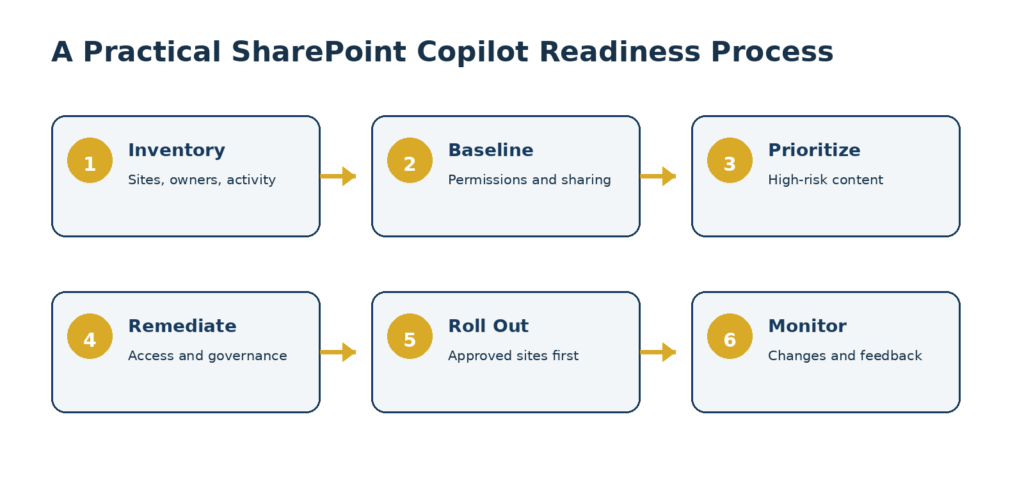
Figure 2. A phased readiness process helps teams move from discovery to controlled rollout and ongoing governance.
SharePoint Governance Must Continue After Copilot Rollout
Readiness does not end when Copilot is enabled.
SharePoint environments change every day. Employees create new sites, invite guests, upload documents, change permissions, and share links. Business owners leave. Projects end. Policies change.
Organizations should continue monitoring new sites, permission changes, external access, ownerless workspaces, content growth, and user feedback.
They should also review unexpected Copilot responses. A low-quality or surprising answer may indicate outdated information, conflicting documents, or an access issue that requires investigation.
Ongoing governance helps keep the environment useful as Copilot capabilities continue to expand.
For organizations expanding from Copilot into broader agent use, Horizons also explains why AI agent governance must include identity, permissions, data, and operational ownership.
Common SharePoint Copilot Readiness Mistakes to Avoid
Assuming Copilot Creates New Permissions
In most cases, the larger issue is that existing permissions were already broader than intended.
Reviewing Only Active SharePoint Sites
Older or abandoned sites may contain some of the least governed information in the tenant.
Treating Copilot Licensing as a Deployment Plan
Assigning a Microsoft 365 Copilot license does not establish content ownership, permission review, employee education, or ongoing monitoring.
Focusing on Security but Ignoring Content Quality
Appropriate access to outdated information can still produce unreliable results.
Disabling Copilot Without a Remediation Roadmap
That delays the decision but leaves the underlying SharePoint problems unchanged.
What IT Leaders Should Do Next
IT leaders should first confirm whether Copilot in SharePoint is available in their tenant and review the controls currently in place.
They should then create an inventory of important sites, establish a permissions and external-sharing baseline, identify higher-risk locations, and assign accountable owners.
The organization should correct the most important access and content-management gaps before expanding Copilot use. A phased rollout can begin with well-governed sites and clear business use cases.
After rollout, teams should continue monitoring permissions, guests, site ownership, content quality, and user feedback.
Prepare SharePoint Before Expanding Copilot
Copilot in SharePoint can help employees find information faster, create content more efficiently, and make better use of organizational knowledge.
Its success depends on the environment beneath it.
Organizations need to know which sites Copilot can use, who can access them, where sensitive information is stored, and whether the content is accurate enough to support business decisions.
The right response is not necessarily to enable everything or disable everything.
A structured SharePoint Copilot readiness review can help organizations identify risk, prioritize remediation, and expand access in a controlled way.
Horizons helps organizations evaluate SharePoint permissions, external access, content sprawl, site ownership, Microsoft Purview controls, and Microsoft 365 Copilot readiness. The result is a practical roadmap that helps IT and business leaders decide what is ready, what needs remediation, and what should remain restricted. Learn more about the Horizons Copilot Readiness Assessment or contact the Horizons team.
Assess Your SharePoint Environment for Copilot