Microsoft Copilot UI for AI
A practical view of how Microsoft Copilot appears and works for enterprise users across Microsoft 365 and Windows.
How Enterprises Experience Copilot at Work
Microsoft Copilot is quickly becoming a core part of the modern workplace, but for many organizations, one question still remains unclear: what does Copilot actually look like for users?
The Microsoft Copilot UI is not a single chatbot or screen. It is a set of experiences across Microsoft 365 apps, Windows, and AI-powered agents that help employees work faster, smarter, and more securely.
This page explains the Copilot UI for AI in simple terms, what users see, how they interact with it, and how it fits into an enterprise environment.
Why the Microsoft Copilot UI Feels Unclear for Many Enterprises?
Many organizations are interested in Microsoft Copilot, but struggle to understand what it actually looks like in day-to-day work.
The confusion usually starts with a few common assumptions:
- Copilot is often mistaken for a single chatbot
- Teams expect a standalone AI tool instead of an in-app experience
- Security teams are unsure how much data Copilot can access
- Business leaders don’t know what employees will actually see on screen
Without clarity on the Microsoft Copilot UI, it becomes difficult to plan adoption, governance, or even basic user guidance.
What Is the Microsoft Copilot UI?
The Microsoft Copilot UI is the interface through which users interact with AI inside Microsoft’s ecosystem.
It does not replace Microsoft 365 tools.
It does not operate outside your environment.
It works within the applications employees already use.
Depending on where someone is working, Copilot may appear
- A chat-style interface for questions, summaries, or guidance
- An AI assistant inside apps like Outlook, Teams, Word, Excel, and PowerPoint
- A quick-access experience on Windows
- A task-focused AI agent designed for internal use
From a user perspective, Copilot feels like an additional layer on top of daily work, not a new system that needs separate training.
How Enterprises Experience Copilot at Work
For most employees, Copilot doesn’t feel like a new product. It feels like a small but useful addition to the tools they already use every day.
In practice, Copilot appears where work is already happening, not in a separate AI portal.
Inside Microsoft 365 Applications
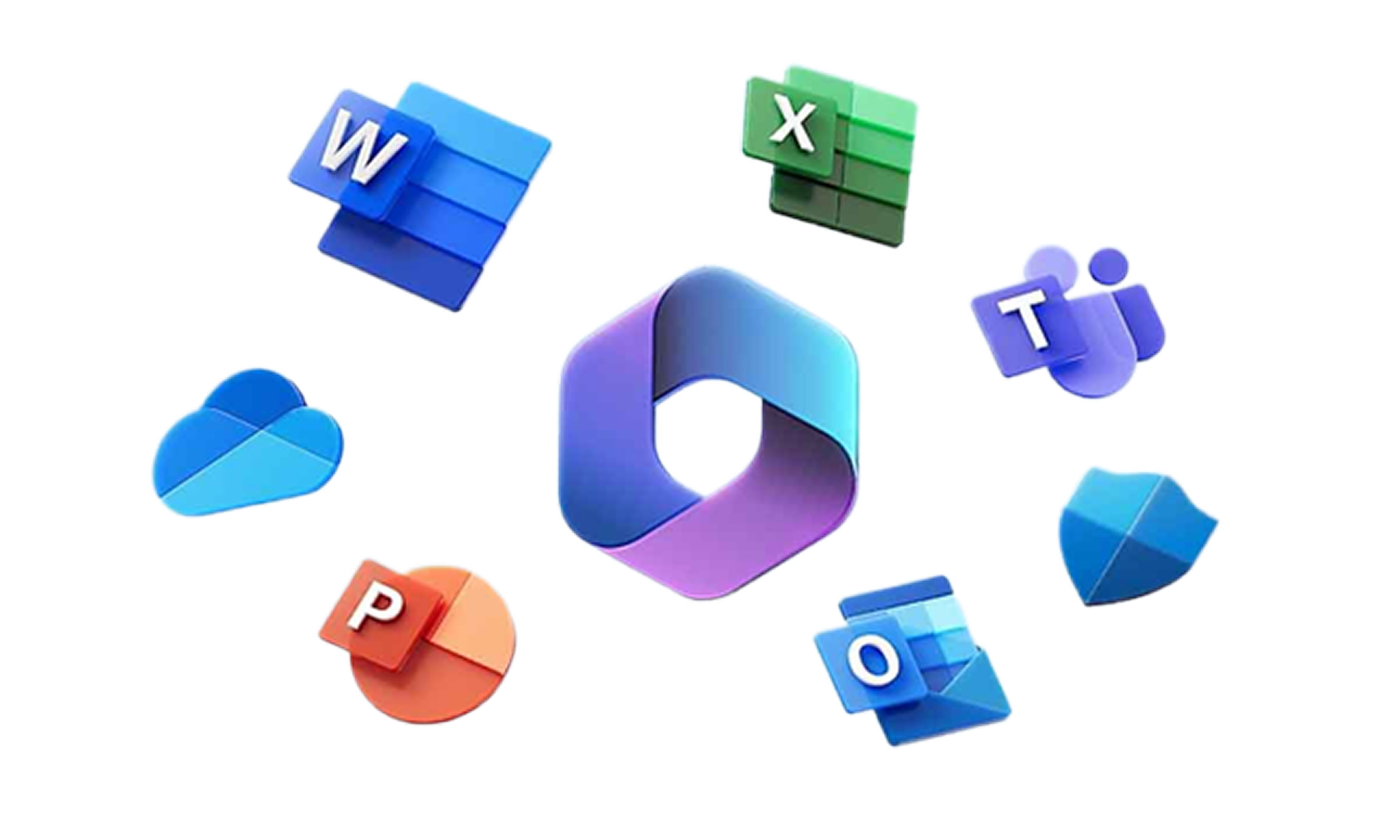
Employees interact with Copilot directly inside familiar apps such as Outlook, Teams, Word, Excel, and PowerPoint. The experience adapts to the context of the app:
- In Outlook, Copilot helps draft or summarize emails
- In Teams, it summarizes meetings and conversations
- In Word and PowerPoint, it helps create and refine content
- In Excel, it assists with analysis and explanations
Users don’t need to “learn AI.” They use Copilot the same way they work today by asking simple, natural questions.

Copilot Chat for Everyday Questions
Copilot also provides a chat-style experience where employees can:
- Ask work-related questions
- Get summaries of information
- Clarify topics without searching through multiple tools
This experience is designed for work scenarios and follows enterprise security and access rules.

Copilot on Windows
On Windows devices, Copilot is available as a quick-access assistant. Employees can bring it up while working across applications to get help without breaking their workflow.
What This Means for Adoption
Because Copilot lives inside existing workflows:
- Employees adopt it faster
- There is less resistance to change
- AI becomes part of daily work, not a separate task
For enterprises, this UI-first approach makes Copilot easier to roll out—but only when users understand what to expect.
How the Microsoft Copilot UI Uses Enterprise Data
One of the most important questions enterprises ask is how Copilot interacts with company data.
The Microsoft Copilot UI follows strict enterprise rules:

Copilot respects existing user permissions
It only shows content users already have access to

Identity, access, and security controls remain in place

Organizational data stays within the Microsoft environment
From the user’s point of view, Copilot simply provides relevant answers. Behind the scenes, it works within defined access boundaries set by IT and security teams.
How the Microsoft Copilot UI Uses Enterprise Data
One of the most important questions enterprises ask is how Copilot interacts with company data.
The Microsoft Copilot UI follows strict enterprise rules:
- Copilot respects existing user permissions
- It only shows content users already have access to
- Identity, access, and security controls remain in place
- Organizational data stays within the Microsoft environment
From the user’s point of view, Copilot simply provides relevant answers. Behind the scenes, it works within defined access boundaries set by IT and security teams.
Microsoft Copilot UI vs Public AI Tools
Although the interface may look conversational, Microsoft Copilot is designed very differently from public AI platforms.
Key differences include:

Enterprise identity and access controls

Permission-based data visibility

Built-in compliance and auditing

AI grounded in organizational context
The Copilot UI for AI is built for professional environments where security, trust, and governance are required, not optional.
Common Mistakes Enterprises Make with Copilot UI Adoption
Many Copilot rollouts struggle due to expectations rather than technology.
Common issues include:

Rolling out Copilot without explaining how the UI works

Assuming Copilot understands all company data automatically

Treating Copilot like a general chatbot

Ignoring governance and data readiness

Providing little or no user guidance
Understanding the Copilot UI early helps avoid these problems.
How Horizon Consulting Helps
Horizon Consulting helps enterprises understand how Copilot behaves in real-world environments.
Our work typically includes:
- Clarifying Copilot user experience and access behavior
- Aligning Copilot usage with security and governance requirements
- Preparing Microsoft 365 and Azure environments for AI readiness
- Supporting enterprise adoption with clear, practical guidance
We focus on helping organizations use Copilot with confidence, not guesswork.
Not Sure How Copilot Will Work in Your Environment?
Every Microsoft environment is different. Permissions, data structure, and security policies all influence how Copilot behaves.
A short discussion can help you understand:
What users will see in the Copilot UI
How Copilot interacts with your Microsoft 365 data
Where readiness or governance gaps may exist
Schedule a 45-minute Copilot discussion
Bring structure, visibility, and measurable impact to your AI strategy.
Copilot UI – For AI FAQs
How is the Microsoft Copilot UI different from a traditional chatbot?
The Microsoft Copilot UI is embedded directly into Microsoft 365 apps and Windows. Instead of acting as a standalone chatbot, it works within existing workflows and responds based on the context of the app being used.
Where exactly does Microsoft Copilot appear for end users?
Copilot appears inside applications like Outlook, Teams, Word, Excel, and PowerPoint, as well as through Copilot Chat and Windows. Users interact with it where they already work, not through a separate AI portal.
Does the Copilot UI automatically access all organizational data?
No. Copilot only accesses information that a user is already permitted to see. It does not bypass permissions, security policies, or access controls configured in Microsoft 365.
How does Copilot UI behave in regulated or secure environments?
Copilot operates within existing Microsoft security, identity, and compliance frameworks. Its behavior is governed by tenant configuration, permissions, and data governance policies, making it suitable for regulated enterprise environments.
Can IT teams control or limit how Copilot is used?
Yes. IT and security teams can manage access, permissions, and data exposure through Microsoft’s administrative and security controls. Copilot’s UI experience reflects these configurations.
What happens if organizational data is poorly structured or overshared?
Copilot reflects the state of your environment. If data is overshared or poorly governed, the Copilot UI may surface more information than intended, highlighting the importance of readiness and governance before rollout.
Is Copilot UI the same for every user?
No. The Copilot UI adapts based on user role, permissions, and the applications they use. Two employees may see different results even when asking the same question.
Does Copilot UI replace existing Microsoft 365 features?
No. Copilot enhances existing tools by adding AI assistance. It does not replace applications, workflows, or established business processes.
How much user training is required to use Copilot UI effectively?
Basic usage requires very little training, but effective enterprise adoption benefits from clear guidance on what Copilot can and cannot do, as well as best practices for responsible use.
How can enterprises evaluate Copilot UI before a full rollout?
Enterprises should review how Copilot interacts with their data, permissions, and workflows through a readiness or pilot assessment. This helps avoid surprises during broader deployment.